If your site is built on Prismic, an article you finished in GetCited.me does not have to be copied field by field. Connect the repository once, tell GetCited.me which of your fields an article goes into, and every finished article can be sent to Prismic as a draft — in its own language and, if you want, translated into up to three more of the locales your repository already has.
GetCited.me never publishes anything in Prismic. It creates drafts; you review them and press publish.
The film at the top shows the whole round trip in under a minute — token, connection, field mapping, sending an article and updating it. The steps below repeat it with screenshots.
Before you start
You need to be the project owner. Connecting a repository, changing its field mapping and disconnecting it are owner-only. Collaborators in the workspace see the connection and can send articles to it once it is set up.
Your repository needs a document type that can hold an article — a repeatable type with a UID field (the slug), a title field and a rich-text field for the body. If it has none (a brand-new, empty repository, say), GetCited.me can create one for you right after you connect; see below.
Create a write token in Prismic
GetCited.me writes to Prismic through Prismic's Write API, with a token you create and can revoke at any time:
- In Prismic, open your repository.
- Go to Settings → API & Security.
- Open the Write APIs section and create a new token. Name it something you will recognise later, such as "GetCited.me".
- Copy the token.
The token lets GetCited.me create and update documents in that repository. It only ever uses it to write drafts.
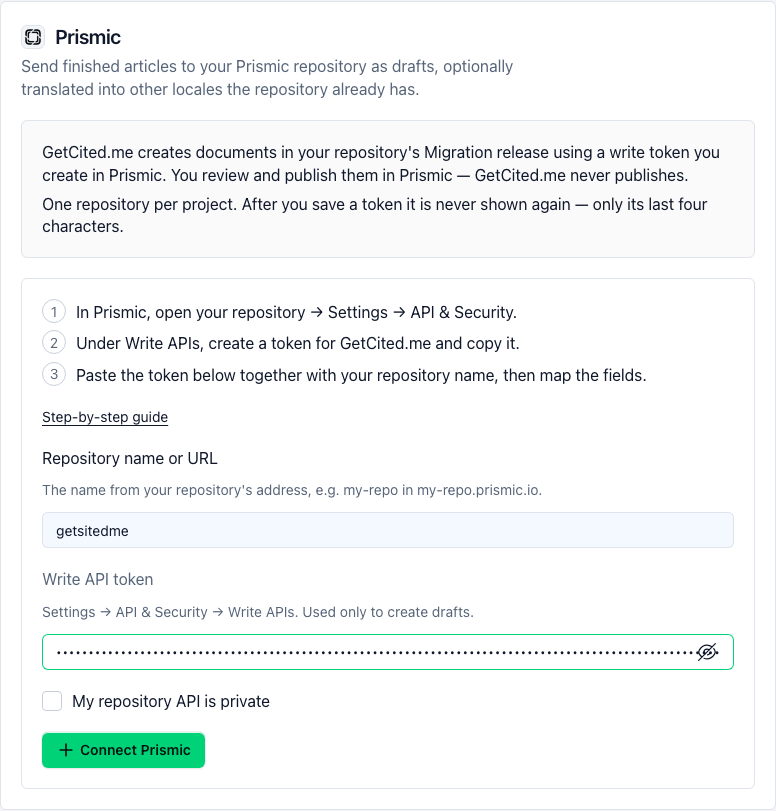
Prismic's own screens need your Prismic login, so they are not pictured here; the Prismic card in GetCited.me repeats the path in three numbered steps.
Is your repository's API private? If Settings → API & Security → Content API shows the repository as private, also copy a Content API access token from the same screen. GetCited.me needs it to read your custom types and locales.
Connect it in GetCited.me
Open Settings → Integrations and find the Prismic card.
- Repository name or URL. The name is the first part of your repository's address —
my-repoinmy-repo.prismic.io. Pasting the full address works too. - Write API token. Paste the token you created.
- If your API is private, tick My repository API is private and paste the Content API access token.
- Press Connect Prismic.
GetCited.me checks the token against the repository right away. A wrong token or a repository that does not exist each gets its own message on the card.
No type for articles yet?
If none of your types can hold an article, the card says so after connecting and offers two ways forward:
- Create the Blog post type. GetCited.me adds a new type called "Blog post" to your repository with exactly the fields an article fills: UID, title, cover image, body, and — on an SEO tab — meta title and meta description. It only adds a type: Prismic refuses to overwrite an existing one, so nothing already in your repository changes. The mapping then opens prefilled; press Save mapping and you are ready.
- Copy the model (JSON). If your site's code manages its Prismic model with Slice Machine, give this file to your developer to add as
customtypes/blog_post/index.jsoninstead — a type created only in Prismic is not part of your code. When it is in your repository, open Edit mapping.
Either way, your website also needs a page that shows the new type before published articles appear on it — that part is your developer's.
Once saved, a token is never shown again. The card shows only its last four characters, so you can tell which token is in use. To rotate it, create a new token in Prismic and use Replace token on the card.
Map the article onto your fields
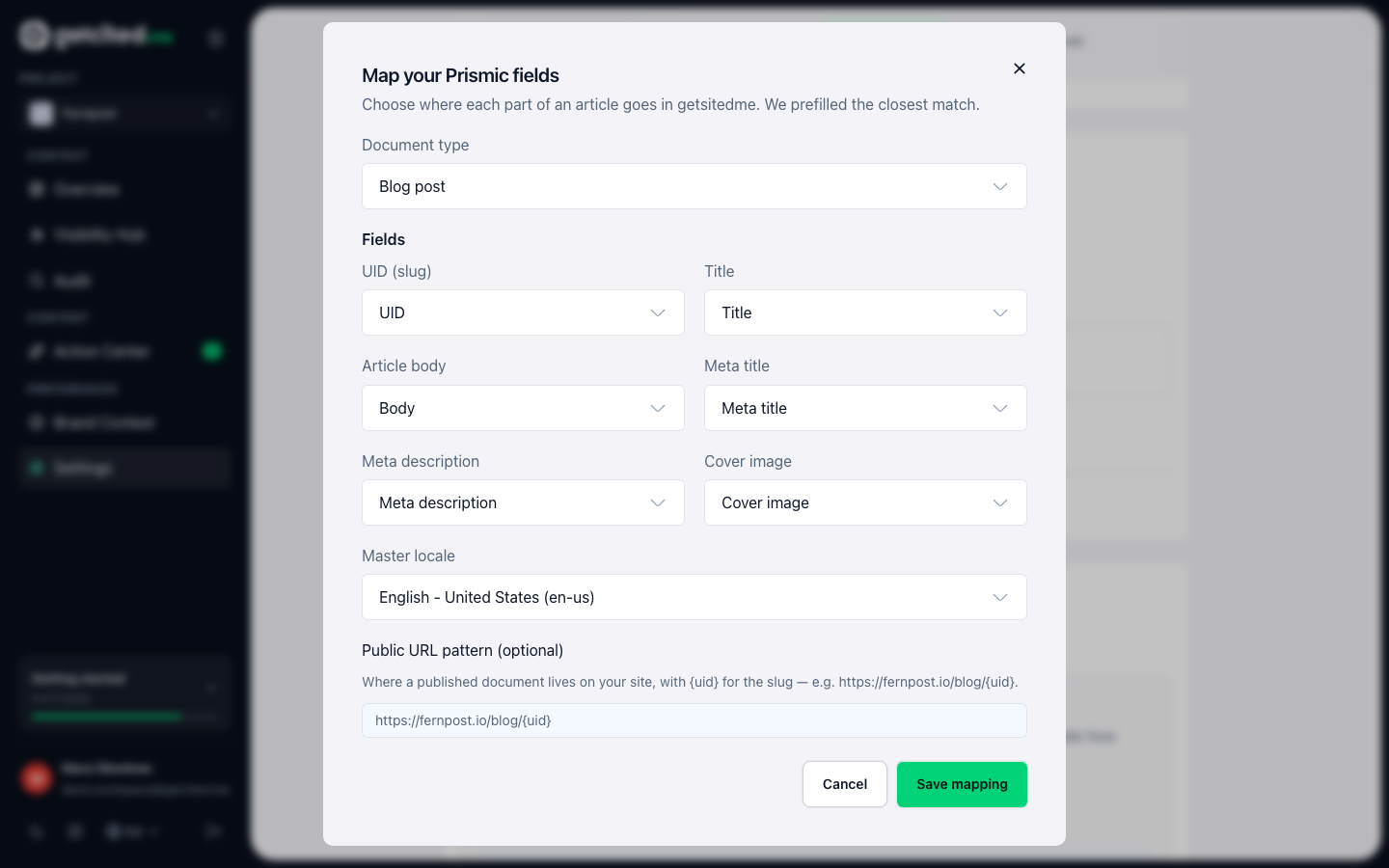
Right after connecting, GetCited.me reads your custom types and opens the mapping with its best guess already filled in. Check each line and change what does not fit:
- Document type — the type articles are created as.
- UID (slug) — the type's UID field.
- Title — a key text or rich-text field.
- Article body — a rich-text field, or a rich-text field inside a slice if your body is built from slices.
- Meta title, Meta description, Cover image — optional. Leave them as "Not mapped" if your type has no such fields.
- Master locale — your repository's main language.
- Public URL pattern — optional. Where a published document lives on your site, with
{uid}standing for the slug — for examplehttps://example.com/blog/{uid}. It must use your project's own site address. With it, GetCited.me knows the article's public address once you publish it.
Press Save mapping. The card switches to Ready. Until then it says Needs mapping, and nothing can be sent.
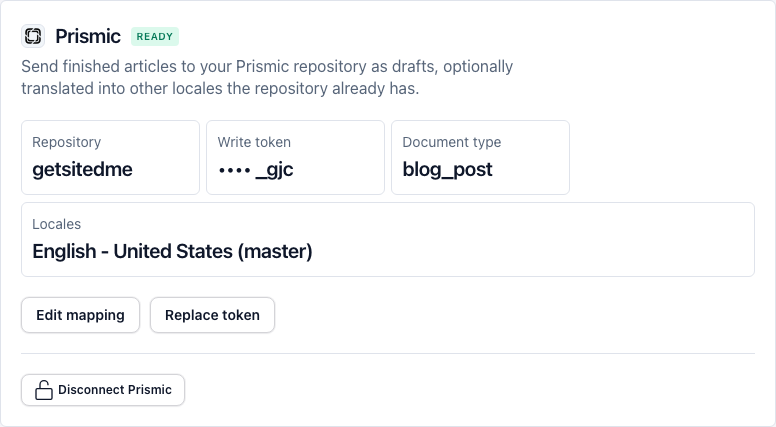
You can reopen the mapping at any time with Edit mapping — for example after you add a field to the type in Prismic.
Send an article
Open a finished article in Action Center, press Finalize & Publish, and choose Prismic (draft).
- Article language in Prismic is preselected from the article's language. Change it if your repository names that language differently.
- Also translate into — tick up to three more locales from your repository, or none.
- Press Create Prismic draft.
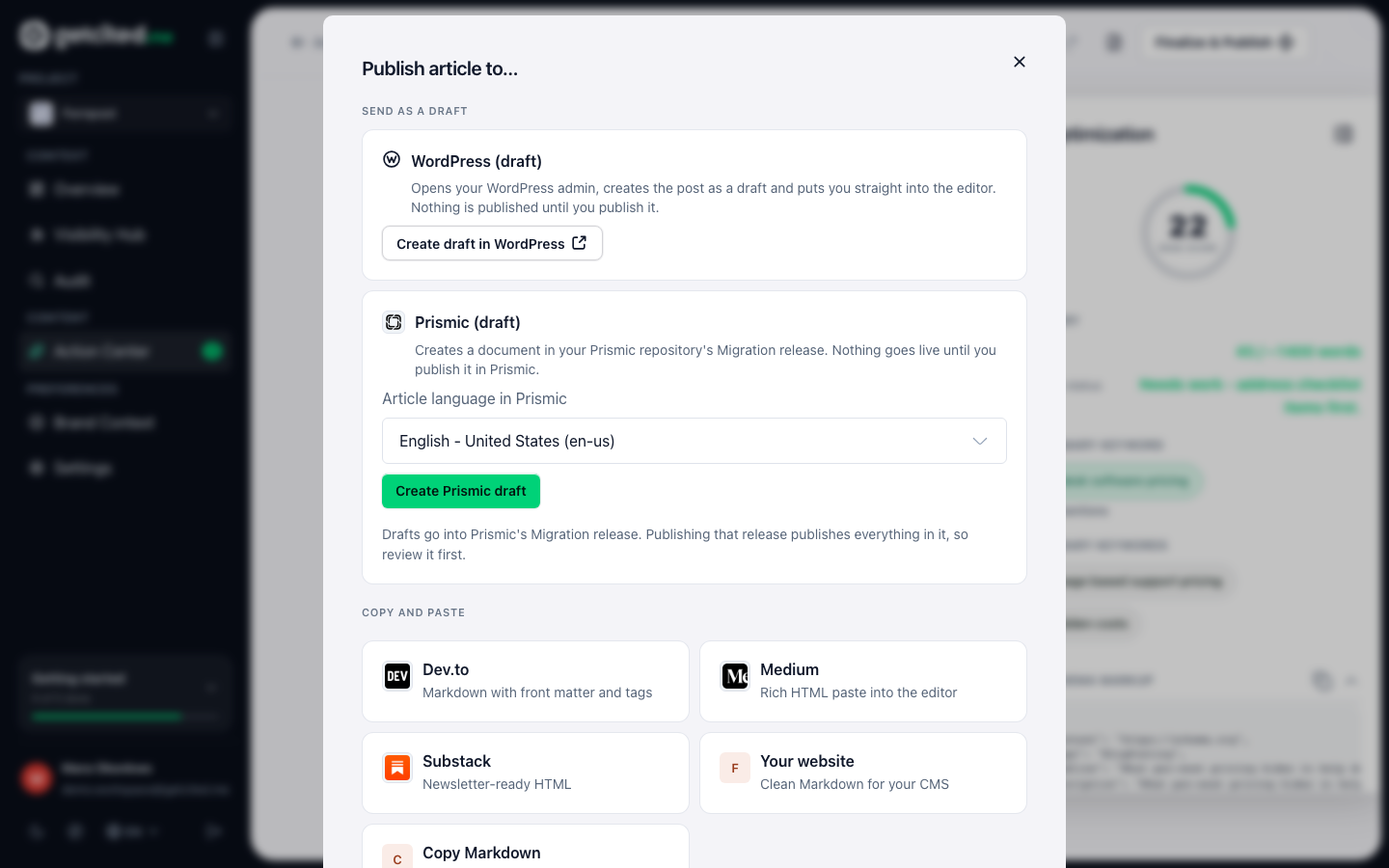
The work runs in the background, and its progress shows in the Command Center. When it is done, the publish window shows Draft created and an Open in Prismic link for every locale that was written (it reads Open en-us in Prismic, with your locale's code).
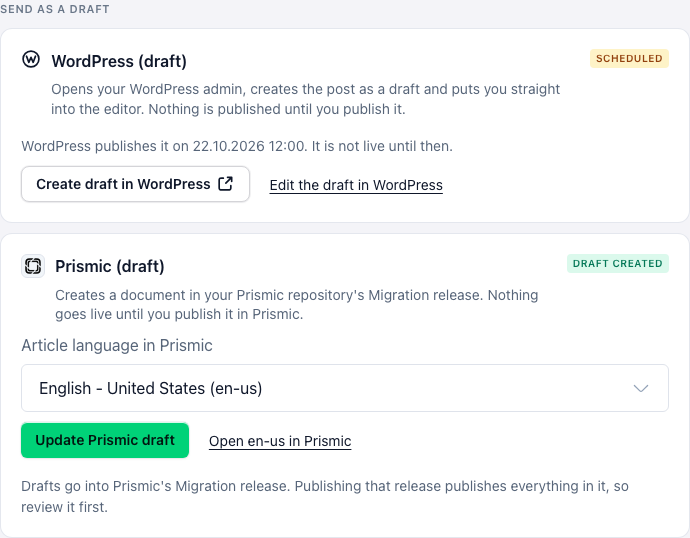
How locales are handled:
- The document in your master locale is always created first, because Prismic attaches every other language to it. If the article is written in another language, the master-locale document is the translation.
- Translations are machine-made from the article and arrive as drafts like everything else. Read them before publishing.
- The same article text translated into the same locale is not translated twice — sending an unchanged article again reuses the earlier translation.
- An edited article needs a fresh translation, and each article gets at most two translation attempts per locale. An attempt counts even when it fails — a translation that came back broken was still paid for, and it is never saved. After that, that locale can only receive the text it was already translated from (if there is one); the publish window says so rather than sending a stale translation.
How images are handled:
- Cover image. Only a cover you uploaded to GetCited.me is copied into your repository's media library and put into the field you mapped as Cover image. A cover from Unsplash — or from any other website — is not copied: Unsplash's licence allows showing its photos only from Unsplash with credit, a Prismic image field can only hold an image from your own media library, and an image from someone else's site is not ours to re-host. In those cases the mapped image field is left empty — add your cover in Prismic before you publish.
- Images in the article text are uploaded into your media library when the body field you mapped allows images (Unsplash photos excepted, for the same licence reason); otherwise they are left out of the Prismic draft. Their alt text goes with them, and a caption follows the image as its own paragraph, because a Prismic rich-text image has no caption.
- Each image is uploaded once. Sending the article again, a retry after a failure, or replacing the draft reuses the images already uploaded instead of adding copies to your media library.
How the article's formatting is kept:
- Headings, paragraphs, bold, italics, links (internal and external) and bulleted or numbered lists arrive as Prismic rich text.
- Nested lists are flattened. Prismic rich text has no list levels, so a sub-item lands right after its parent item, in the same order, without the indent.
- Tables and code arrive as preformatted text — a table as one row per line with cells separated by
|. Prismic rich text cannot hold a table; rebuild it in Prismic if your site needs a real one. - A quote becomes a plain paragraph.
Where the drafts land
Every document GetCited.me creates goes into your repository's Migration release — the release Prismic keeps for documents created through the Write API. Nothing in it is live.
Two things worth knowing before you publish:
- You publish, not GetCited.me. Open the Migration release in Prismic, review the documents, and publish them as you would anything else.
- Publishing the Migration release publishes everything in it, not only the article you are looking at. If other imported documents are waiting there, review them too before you press publish.
Sending the same article again
If an article is already in Prismic, its button reads Update Prismic draft, and pressing it asks first: Replace the draft in Prismic? Confirming replaces that draft with the current version of the article. Edits made to the draft in Prismic since it was created are lost, so copy anything you want to keep before you confirm. If you deleted that draft in Prismic in the meantime, confirming creates it again.
When something goes wrong
- "Prismic rejected this write token." The token was revoked or mistyped. Create a new one and use Replace token. The card shows Token rejected until you do.
- "No Prismic repository with that name was found." Check the name in your repository's address.
- "No document type in this repository can hold an article." Use Create the Blog post type on the card, add such a type in Prismic yourself (or with Slice Machine from the copied model), then open Edit mapping.
- A draft shows Failed. The publish window says why. Fix it — usually the mapping, after a field was renamed or removed in Prismic — and send the article again.
Disconnecting
Disconnect Prismic at the bottom of the card makes GetCited.me forget the repository, its tokens and the field mapping. Documents already created in Prismic stay where they are. If you no longer need the write token, revoke it in Prismic as well — disconnecting here cannot do that for you.
What to read next
- Action Center: turning findings into work — where finished articles come from.
- The WordPress plugin — the same one-click drafts for a WordPress site.
- Settings, tab by tab — where the Integrations tab sits and what else lives beside it.