We measure your site from the outside. Our crawler reads it the way an answer engine does - over the public internet, with no login and no cooperation from your server. WordPress knows something that crawl cannot: everything the site actually publishes.
The plugin is what lets the two be compared. Where they disagree (a page WordPress publishes that nothing outside your server could fetch) is the finding, and no plugin without a crawler behind it can produce that finding at all.
The WordPress plugin page explains what it is for. This one explains how to run it - the film at the top walks through the whole thing in about two minutes, and every step below has its screenshot.
Before you start
You need an account and a project for this site. The free plan is enough to pair one site. The plugin has no measurements of its own - everything it shows is computed by the service from AI answers collected for your site.
Install it from the WordPress plugin directory. There it is called Cited Pages AI Citation Audit for GetCited.me, published by getcitedme: wordpress.org/plugins/cited-pages. The plugin page on getcited.me links to it too. A different plugin by another author uses a name close to GetCited; it has no connection to us, and installing it will not pair anything.
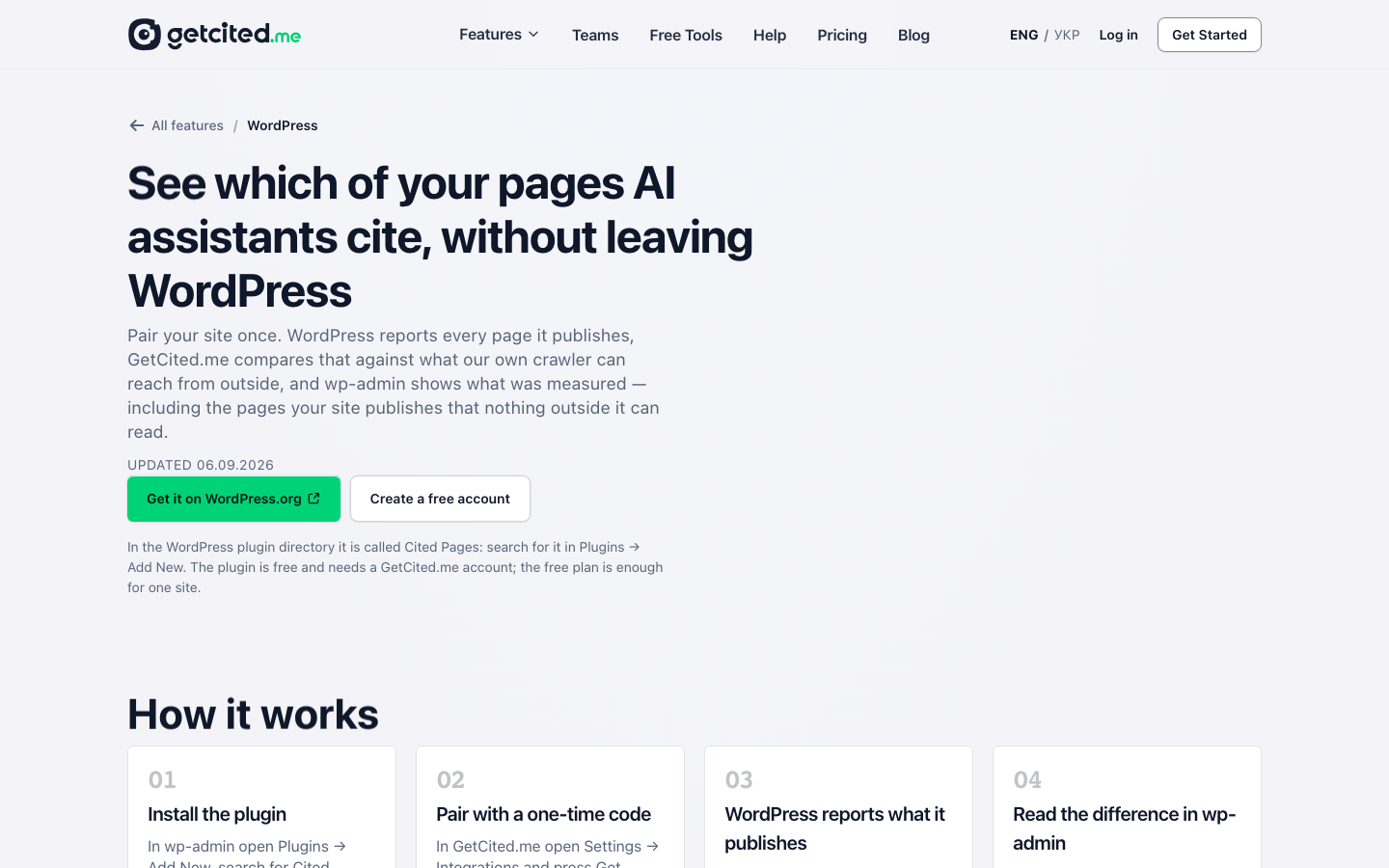
Your site has to be reachable from the public internet. Pairing is not a form you fill in - the service reads a value back from your own site before it issues anything. A site behind Basic Auth, a firewall, a "coming soon" plugin, or running only on localhost cannot be paired. There is no offline mode.
Install it
In wp-admin open Plugins → Add Plugin (older WordPress calls it Add New), search for Cited Pages, press Install Now, then Activate. It needs WordPress 6.0 or newer and PHP 8.0 or newer.
If your host does not let you install from the directory, press Download .zip on the GetCited.me WordPress page (or Download on the plugin's directory page) and upload that zip in Plugins → Add Plugin → Upload Plugin instead.
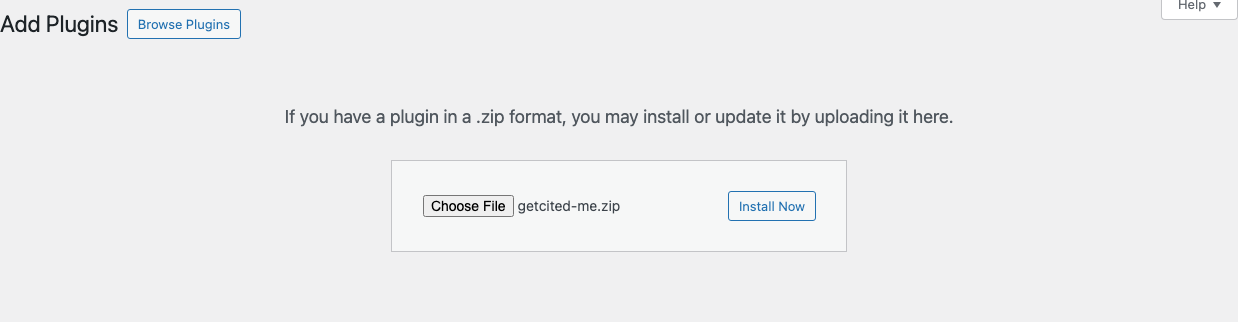
Nothing leaves your server at this point. The plugin makes no outbound call at all until an account is connected in the next step, and it never calls anything from a visitor's browser. (The images inside a post you later create from a GetCited.me article are the one thing a visitor's browser loads from elsewhere - see below.)
Pair it with a one-time code
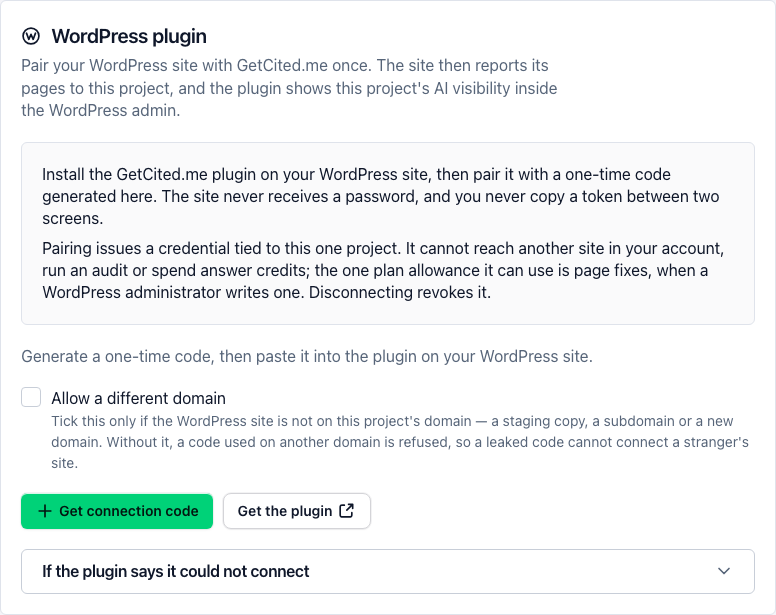
In your account, open Settings → Integrations, find the WordPress plugin card and press Get pairing code. If the WordPress site is not on the domain this project tracks (a staging copy, a subdomain or a new domain) tick Allow a different domain first; without it, a code used on another domain is refused, so a leaked code cannot connect a stranger's site.
The code is shown once - there is no screen anywhere that can show it again, because only its hash is stored. It is valid for ten minutes and works exactly once. A live countdown on the card tells you what is left.
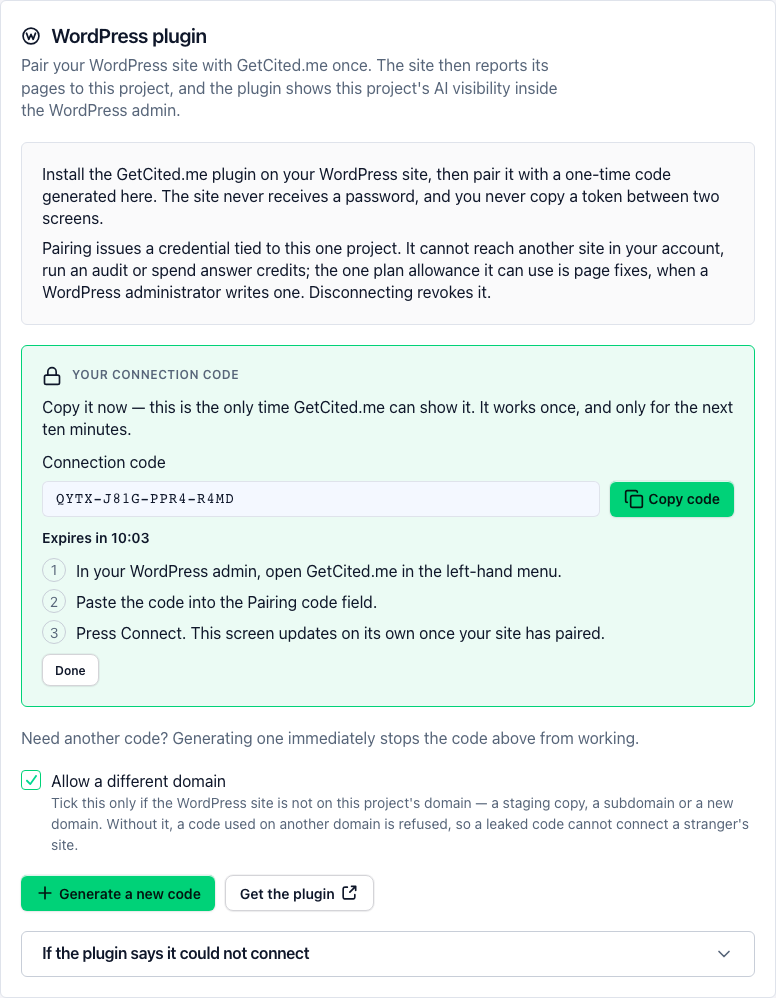
Then, in wp-admin:
- Open Cited Pages in the left-hand menu.
- Paste the code into the Pairing code field.
- Press Connect. The Settings card in your account updates on its own once your site has paired.
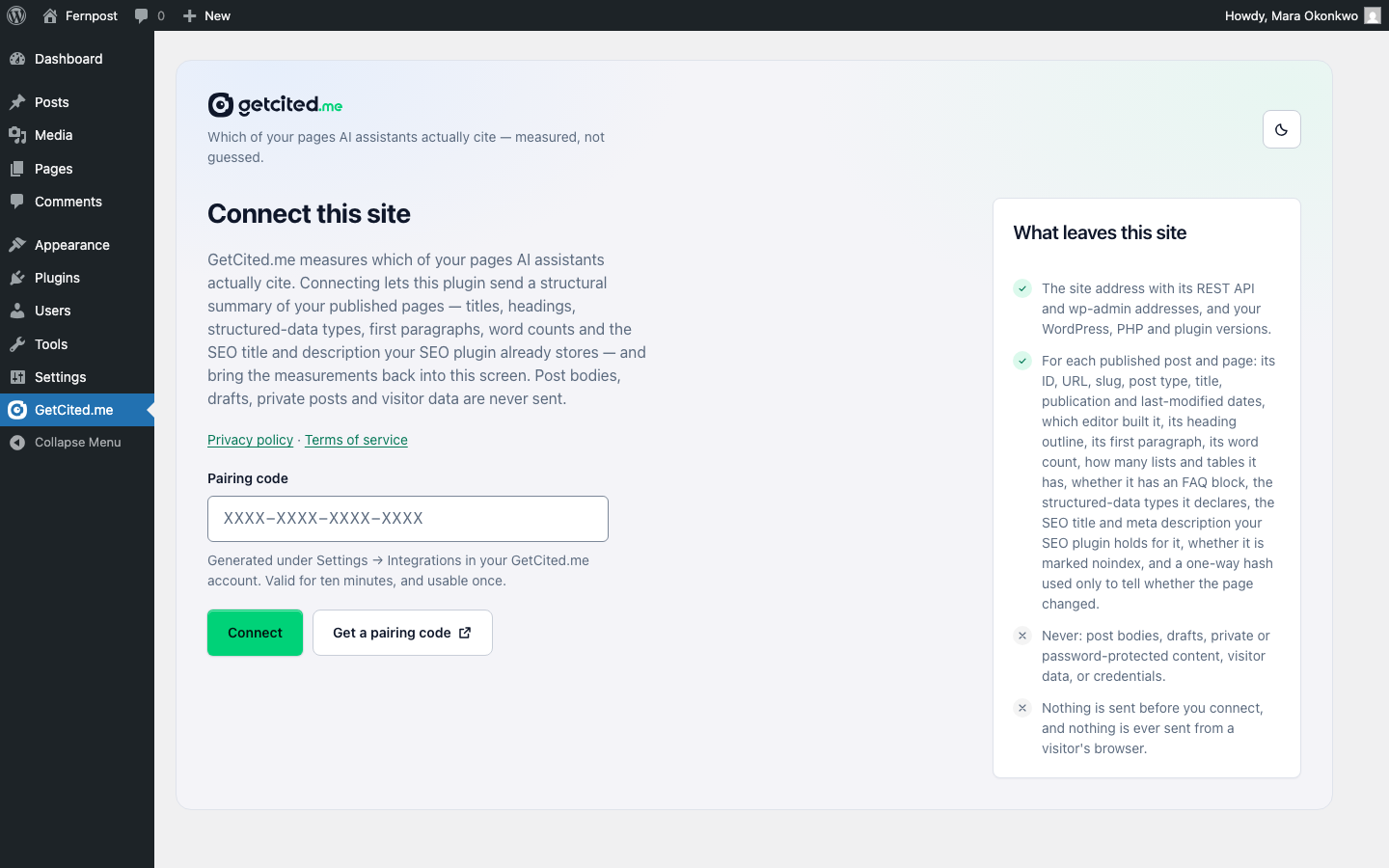
Between those two presses, something happens that is worth knowing about. The plugin invents a random verification value and serves it from its own route on your site. The service then fetches that route over the public internet and requires the same value back, exactly. Only then is a credential issued. That is why pairing proves the site is yours, rather than proving that somebody typed its address.
Three consequences of the design:
- Asking for a second code kills the first. Minting is a replacement, not an addition, so always paste the newest code.
- The credential is bound to that one project. It cannot reach another site in your account, cannot run an audit and cannot spend answer credits. The one allowance it can use is page fixes: pressing the button that writes a fix on the Fixes screen counts against your plan's monthly page fixes, exactly as it does in the app. It carries a 365-day lifetime and is revoked the moment you disconnect.
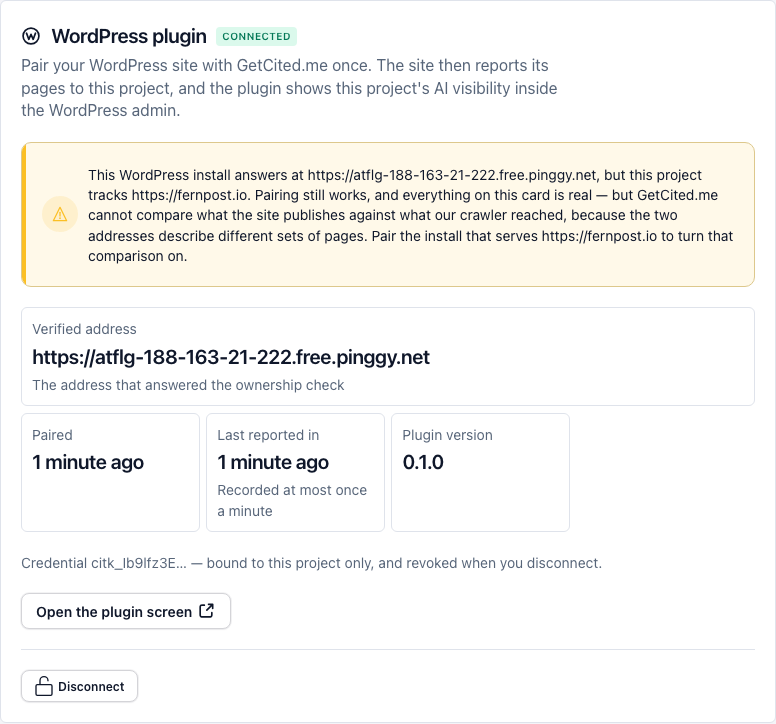
- The address that answered is the address recorded. Redirects are followed, so apex to
wwwandhttptohttpsare ordinary; the card shows the final one as Verified address. If that address is not the host this project tracks, pairing is refused unless the code was generated with Allow a different domain ticked. With it, pairing works and everything on the card is real - but the published-versus-crawled comparison is switched off, because two different hosts describe two different sets of pages. The card says so rather than leaving the feature silently dead.
When pairing does not work
The exchange happens between your server and our API, so its failures appear in wp-admin rather than in your account. The Settings card lists the same six, and they mean different things:
- "The code has expired." Ten minutes passed. Generate a new one.
- "The code is not valid." It was never created, it was already used, or a newer code replaced it.
- "Your site could not be reached." The verification value could not be read from your site at all - Basic Auth, a firewall, a "coming soon" plugin, a
localhost-only install, DNS, TLS, or a timeout. This is one message covering all of them, and it is not softened: a site the public internet cannot read is a site no answer engine can read either. - "The verification value did not match." The address answered, but with something else. Check the site address in the plugin (
wwwandhttpsincluded) and whether a cache or firewall is answering in its place. - "Too many attempts." A code dies after a handful of failed tries. Generate a new one.
- "This site's address is not the website the code was generated for." The site proved it is a WordPress install, but on a different host than this project, and the code was generated without Allow a different domain. If it is the right site, tick the box, generate a new code and paste that one.
What each screen shows
The plugin adds its own screens to wp-admin, and every number on them was computed by the service from answers it collected. None of it is scored on your own server.
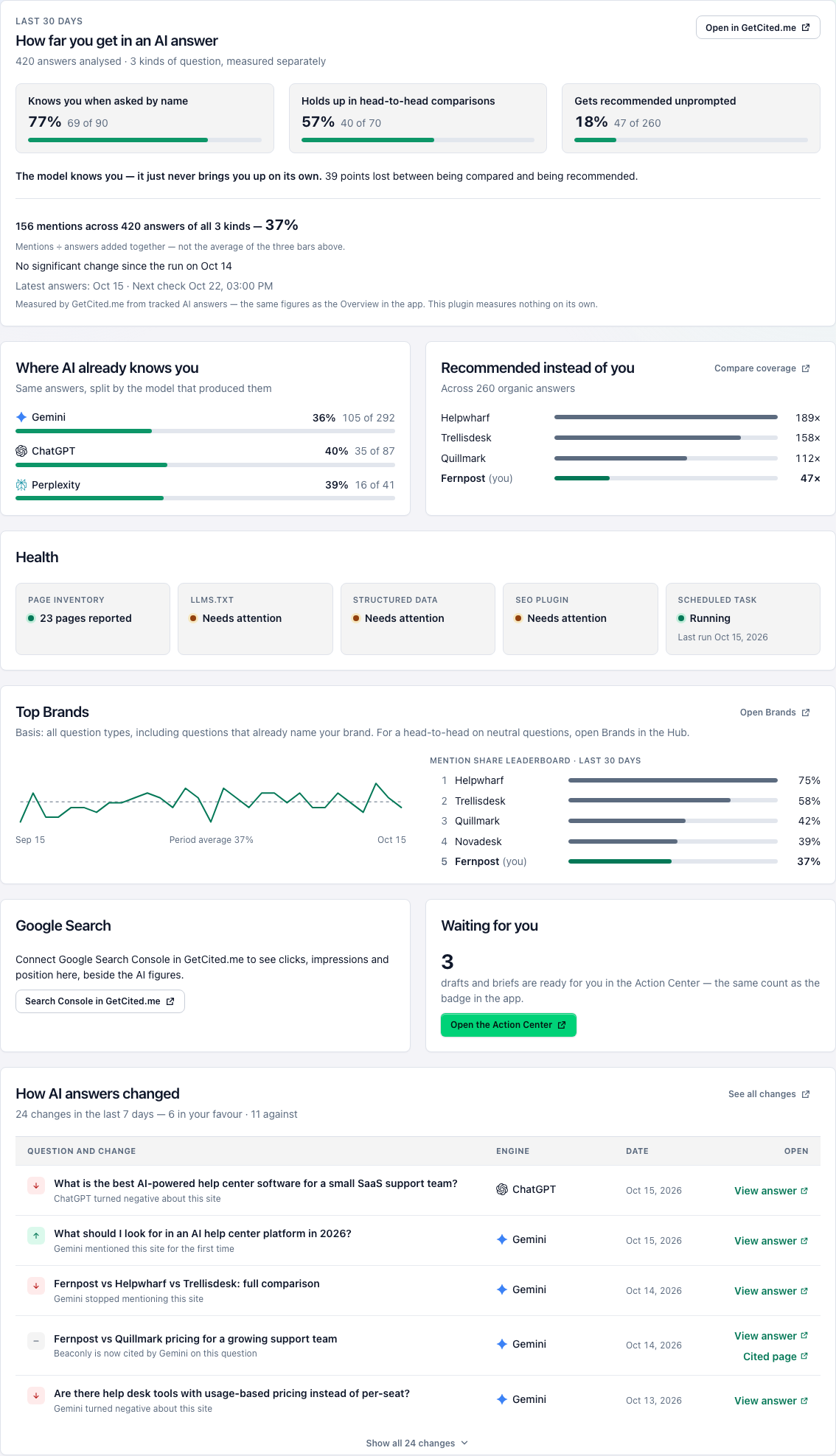
Overview. The same figures as the Overview in the app, for the last 30 days, top to bottom:
- How far you get in an AI answer: how often AI answers named your site on each of the three kinds of question (asked by name, head-to-head comparisons, recommended unprompted), with the share across all three.
- Where AI already knows you: the same answers split by the assistant that gave them - beside Recommended instead of you, who AI names on questions that name no brand.
- Health: whether the page inventory reached GetCited.me, whether
llms.txt, structured data and your SEO plugin need attention, and when the scheduled report last ran. - Top Brands with your daily trend.
- Google Search: clicks, impressions and position over the window of the app's Pages screen, or a link to connect Search Console when it is not connected.
- Waiting for you: how many drafts and briefs are ready in the Action Center, the same count as its badge in the app.
- How AI answers changed: the last seven days, five rows at first and Show all for the rest, each opening the exact answer (and, where one was cited, the cited page) in GetCited.me.
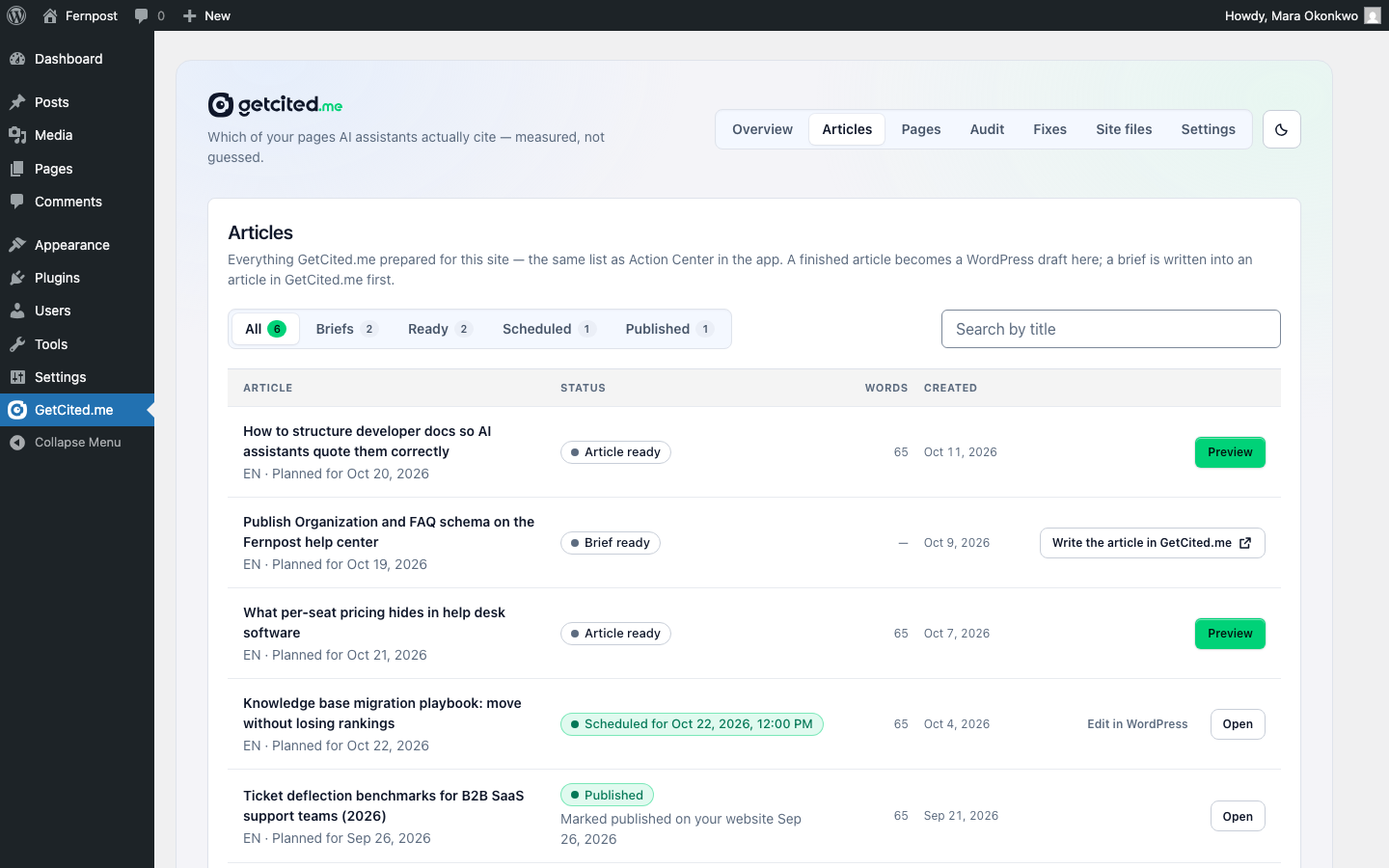
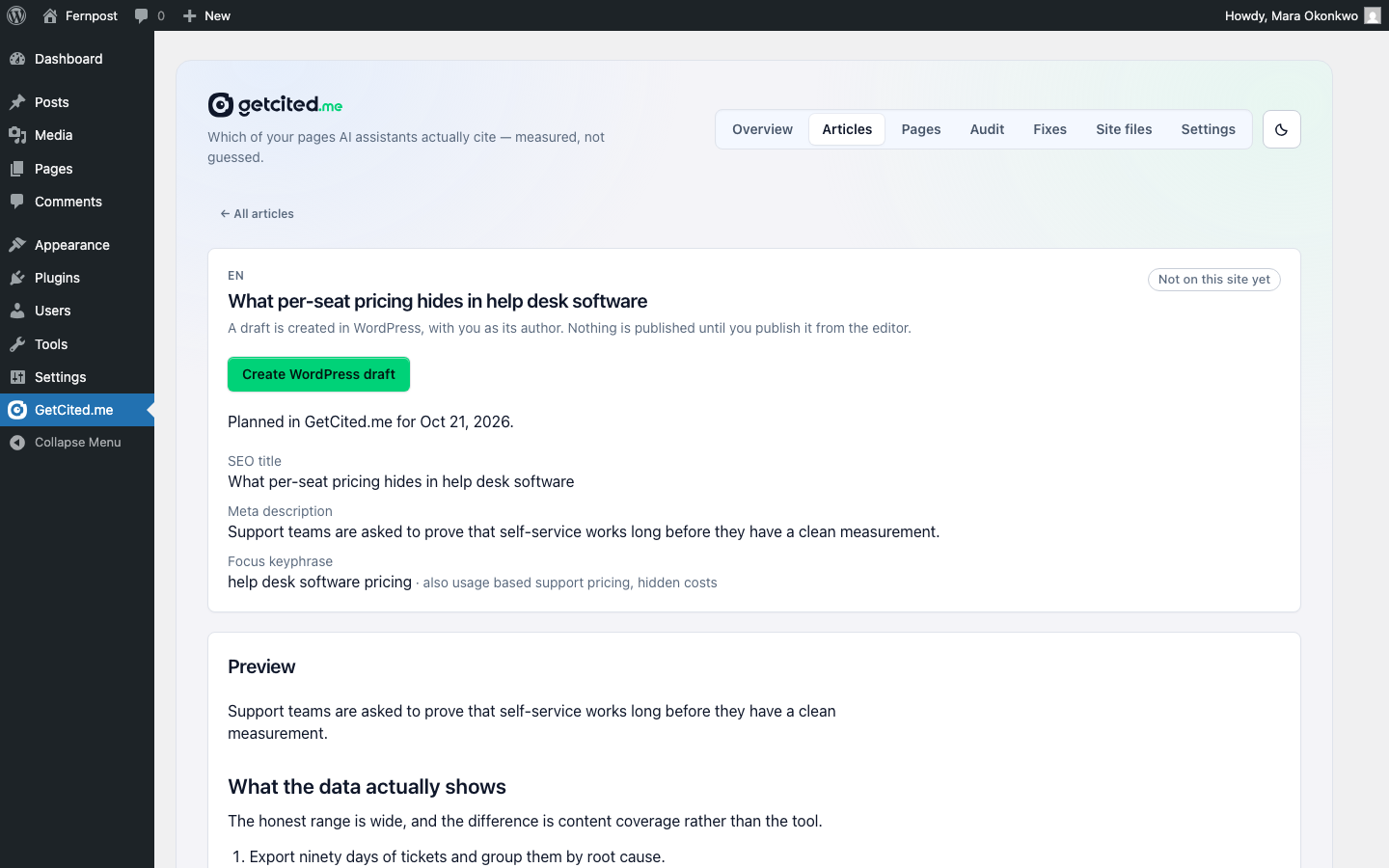
Articles. Everything GetCited.me prepared for this project - the same list, counts and statuses as the Action Center in the app, with search and a status filter: briefs, articles being written, finished articles, and what became of each one in WordPress (a draft, scheduled for a date, published, or moved to the Trash or deleted). A brief links to GetCited.me, where its article is written; a finished article opens as a preview, and Create WordPress draft turns it into a post in a single click - always as a draft, with you as the author, never published. More on what lands where below.
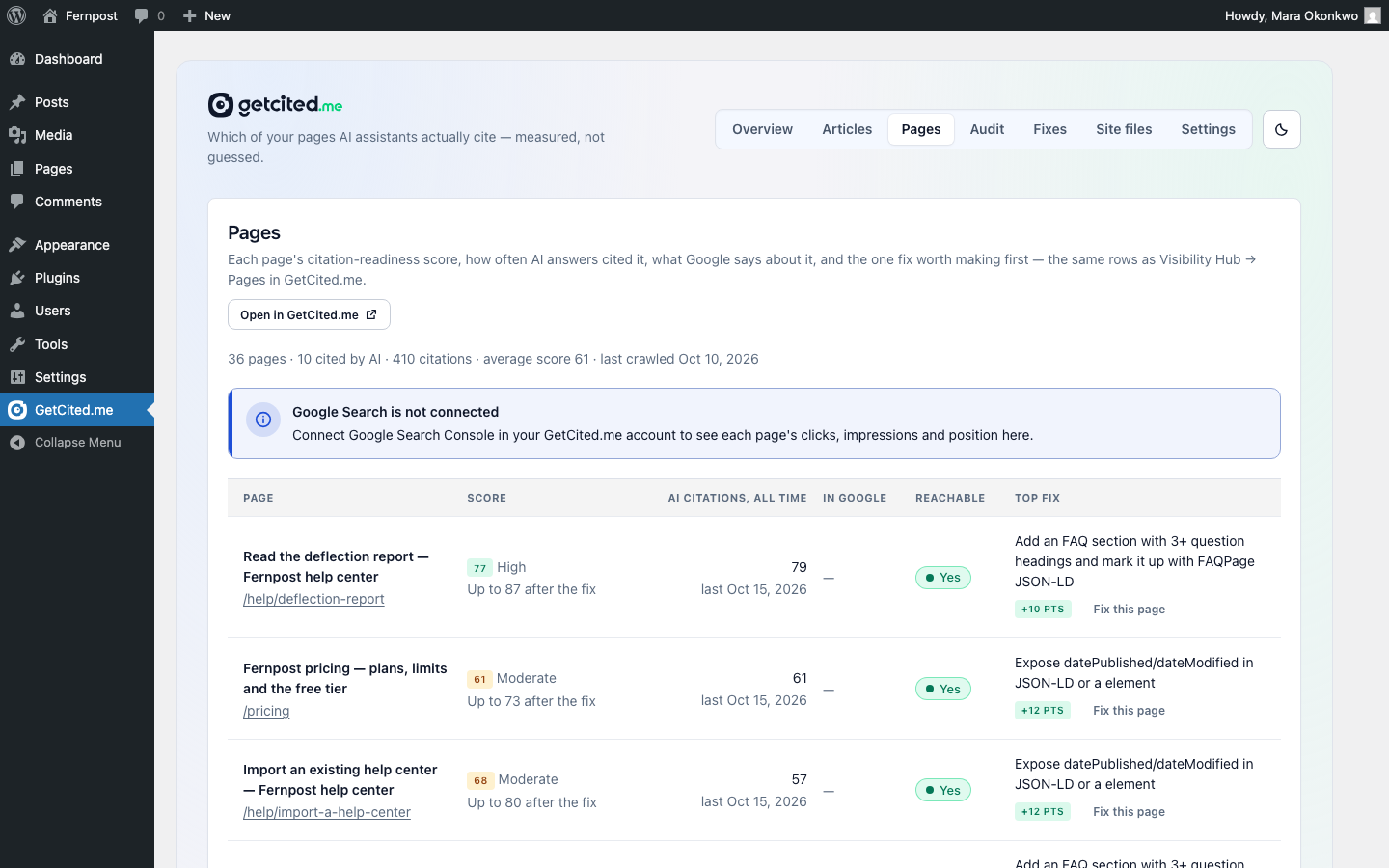
Pages. Every page of the site in one table: its citability score, how often AI answers cited it, its Google clicks, impressions and average position over the same window as the Pages screen in the app (the 30 days ending today, up to the newest day GetCited.me has fetched from Search Console), whether Google has it indexed, whether our crawler could reach it, and the single fix worth making first - which opens the same fix flow as the Audit tab. The Google columns come from Search Console. The Pages screen is open to WordPress administrators only. Search Console data is shared with the whole project team, so the numbers appear whichever team member (the owner or a collaborator) paired the site; a project with no Search Console connection says so instead of showing a row of zeros.
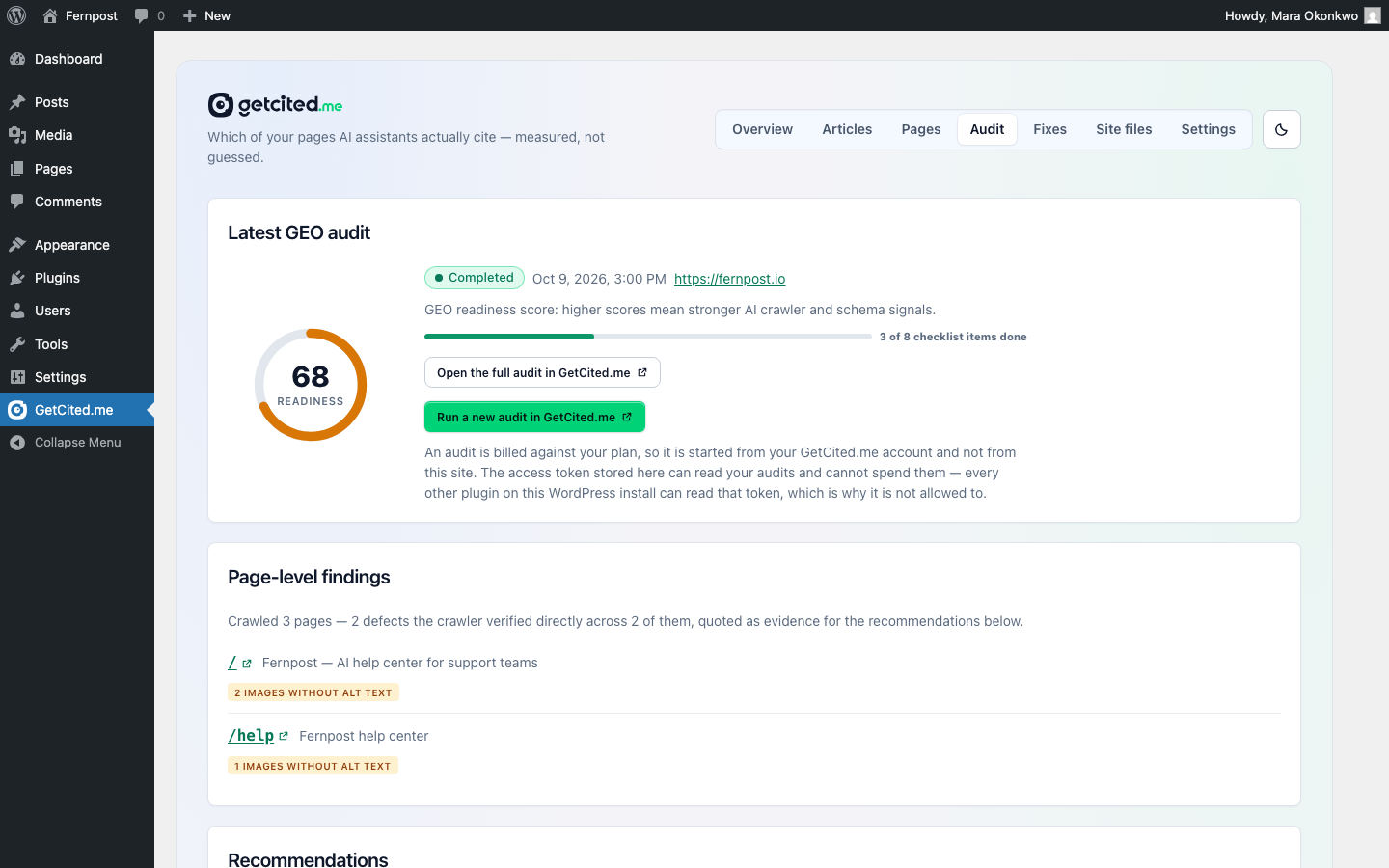
Audit. The latest GEO audit for this site, as the app shows it: its score, the page-level findings, every recommendation with its evidence and draft, the implementation checklist (you can tick items here), every generated file with whether your live copy matches it, a re-check of the live files, and how your robots.txt treats AI crawlers. A link opens the same audit in GetCited.me; a new audit is started from your account, because it is billed against your plan.
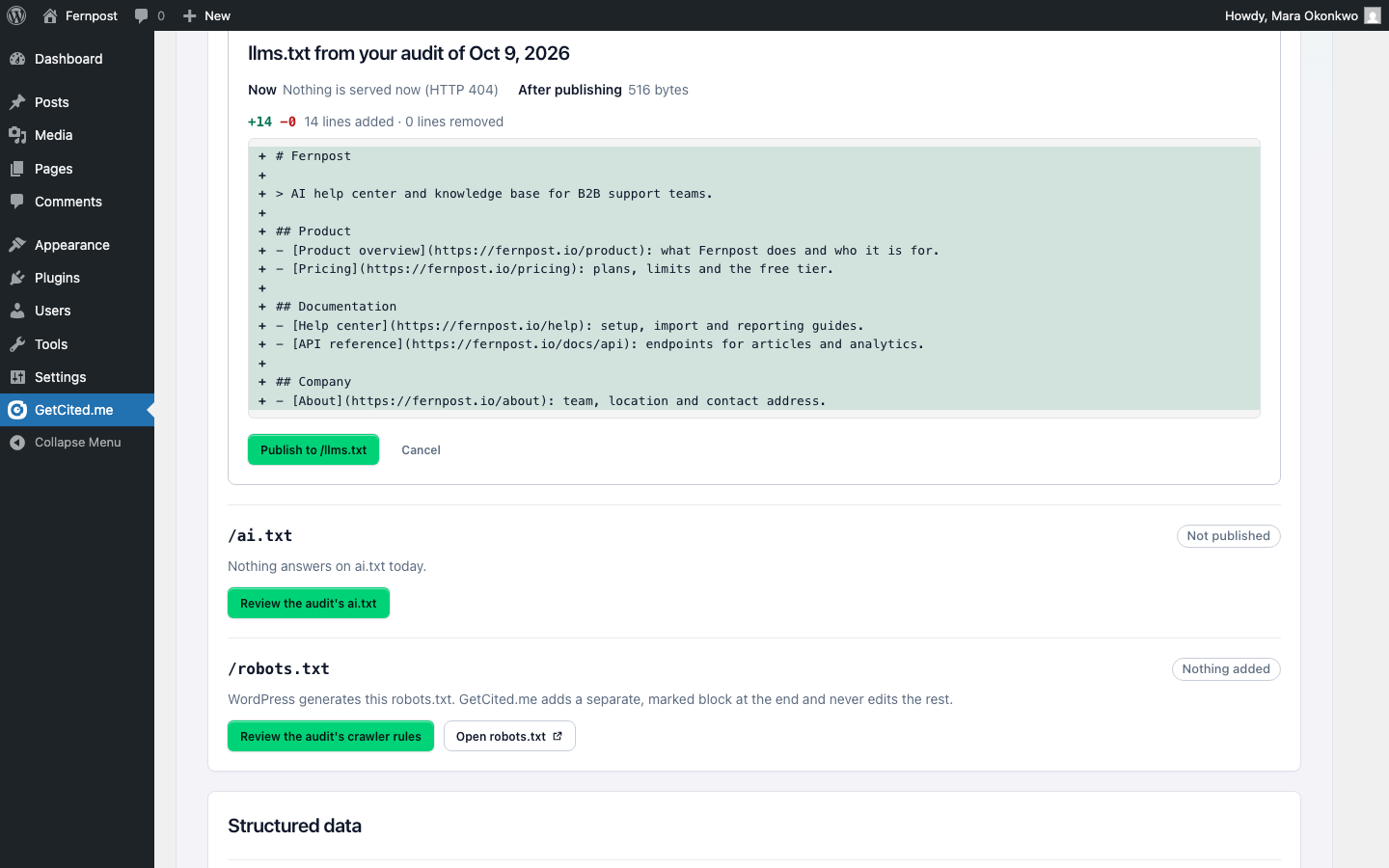
Site files. What this site publishes for AI crawlers - llms.txt, ai.txt, the audit's crawler rules for robots.txt, and the structured-data graph. Every change is shown first as a difference against what your site serves right now, happens only when you press the button under it, and can be undone with one click. Each row says who is serving the file: this plugin, your SEO plugin, or nobody.
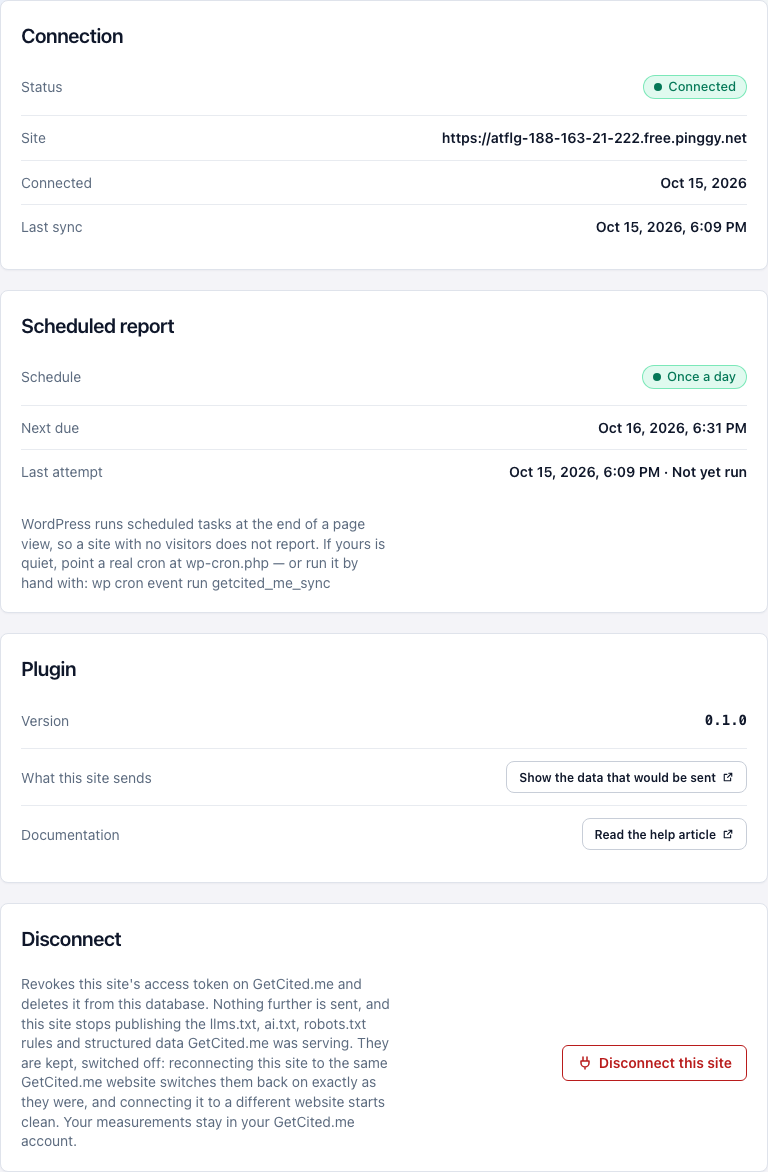
Settings. The connection itself, the daily report's schedule, Show the data that would be sent, and Disconnect this site.
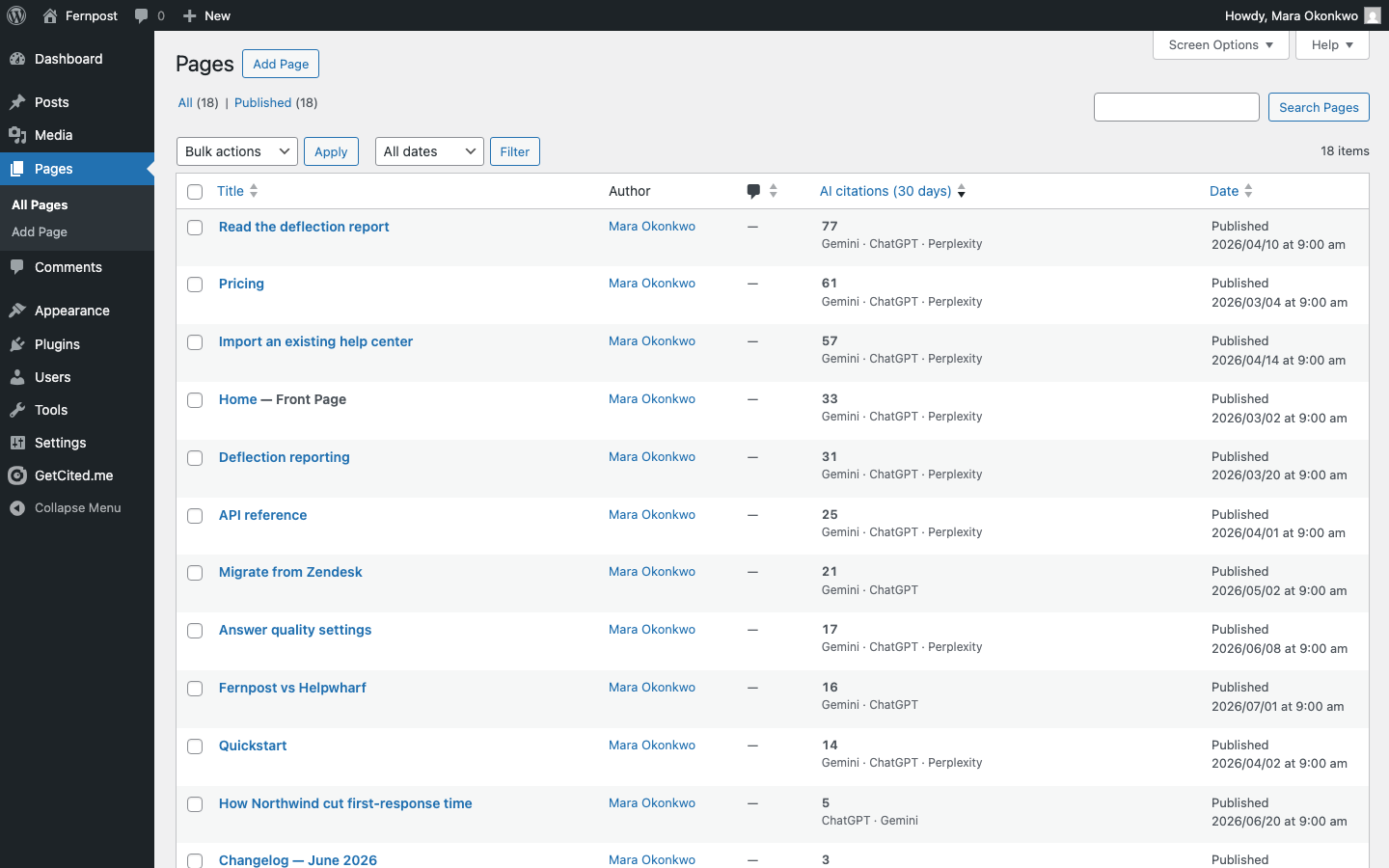
Separately, the citations column in your Posts and Pages lists counts how many times AI answers cited that exact URL over the last 30 days, and by which assistant. That is a different window from the seven-day change feed on Overview - one is a running count, the other is what moved. In the Posts list, a post's Google clicks are shown next to its AI citations - but only to WordPress administrators, and only when the project has Search Console connected. Authors and editors, who can open the Posts list too, see the AI citations and never your Google numbers; the same rule applies to the citations box in the post editor.
In your account, the plugin changes one screen. Visibility Hub → Pages gains a comparison between the two inventories, and a Not reachable filter for the pages that matter: the ones WordPress publishes and our crawler could not fetch. The panel is dated with the day your plugin last reported, so a stale report is never presented as today's truth.

Two things that screen deliberately does not do. A site with no paired plugin gets no comparison at all - not a clean bill of health. And pages the crawl reached but the plugin does not report are not treated as a problem: archives, feeds, non-WordPress pages on the same host and anything a truncated submission left out all land there.
Articles turned into WordPress drafts
An article you finished in GetCited.me does not have to be copied and pasted. There are two ways in, and they end in the same place:
- In wp-admin, open GetCited.me → Articles, pick the article and press Create WordPress draft.
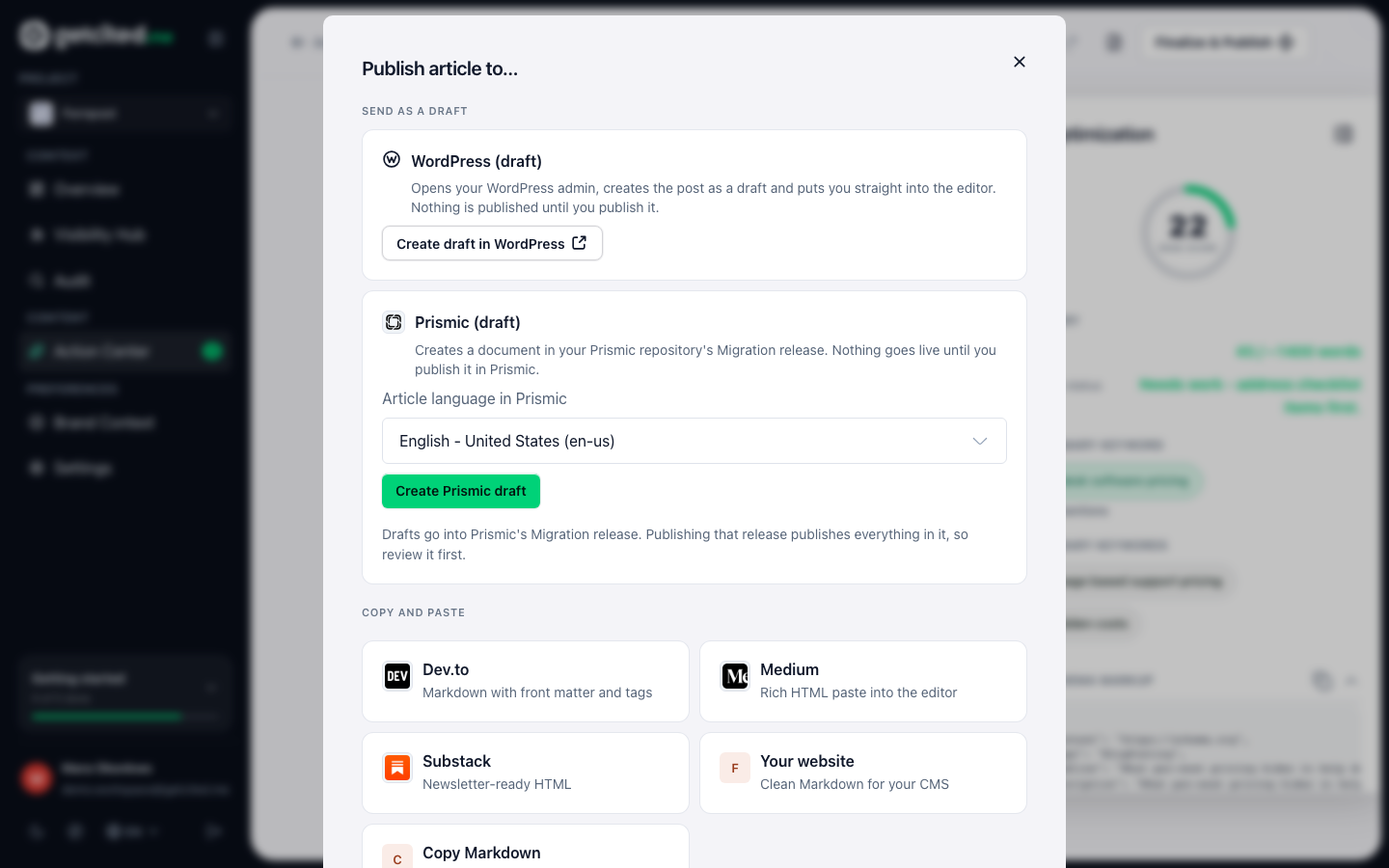
- In your account, open the article, press Finalize & Publish, choose WordPress (draft) and press Create draft in WordPress. WordPress opens on that article, creates the draft and puts you in the editor, signed in as you. The link carries a single-use code that is valid for ten minutes and only for that article, and the plugin checks it with GetCited.me before it writes anything. Opened a second time, opened after the ten minutes, or without its code, the link creates nothing: it shows the article with the Create WordPress draft button for you to press.
What the draft contains:
- The article body as ordinary WordPress blocks - headings, paragraphs, lists, quotes, tables, images, code. It always passes through WordPress's own post filter before it is saved, whatever the source. Images inside the text keep their original addresses: an image uploaded to GetCited.me loads from
api.getcited.me, an Unsplash photo from Unsplash, and an image taken from another website from that website. Visitors' browsers request them from there when they view the post; replace them with images from your Media Library if you want your site to serve every image itself. - The SEO title, meta description and focus keyphrase written into the fields of Yoast, Rank Math or SEOPress, whichever you use.
- The cover image. Only a cover you uploaded to GetCited.me is copied into your Media Library and set as the featured image. A photo from Unsplash is not re-hosted: it is placed as an image block linked from Unsplash with the photographer's credit, as Unsplash's licence expects, and with Yoast SEO or SEOPress its Unsplash address also becomes the post's social sharing image. A cover from any other website is never downloaded either - it is placed as an image block that loads from that website, and you decide whether to keep it or swap in your own.
- The FAQ, kept with the post and emitted as
FAQPagestructured data on that post only. On a site without an SEO plugin, the published post also gets itsBlogPostingstructured data (title, address, dates, author, image) from the plugin; where an SEO plugin prints its own, the plugin adds none.
The draft is created as a draft and nothing else - the plugin has no way to publish it, and needs the WordPress permission to edit posts to create it at all. Pressing the button again never makes a second post: if you have not touched the draft, it is updated with the newer version; if you edited it in WordPress, the plugin stops and tells you rather than overwrite your edits.
When you publish the post in WordPress, the plugin tells GetCited.me its permalink. The article is then marked published in your account with that address, which is what lets the published-article check confirm the page answers - and, with Search Console connected, whether Google has indexed it.
Every other change to that post is reported too, so your account and the plugin show the same status: Scheduled with the date WordPress will publish it (it is not shown as published before then), back to Draft in WordPress, or a note that the post was moved to the Trash or deleted - creating the draft again then makes a new one. Taking a post back from published withdraws only the published mark that came from WordPress; a mark you set yourself in GetCited.me stays.
What the plugin sends, and what it never sends
For every published post and page, the payload carries: its WordPress id, URL, path, slug and post type; its title; its publication and last-modified dates; which editor or page builder produced it; its heading outline; its first paragraph; its word count; how many lists and tables it contains; whether it has an FAQ block; which structured-data types it declares; the SEO title and meta description your SEO plugin holds for it, and which plugin that is; whether the page is marked noindex; a one-way hash of its text, used only to tell whether the page changed since the last report; and, when the plugin could not open a page's content at all, a flag saying so.
Once per site it also sends the site URL and the WordPress, PHP and plugin versions.
Post bodies are never sent. The first paragraph is the only body copy that leaves your site. There is no content, html or excerpt field in the payload, and the API refuses a submission that invents one rather than storing it.
Drafts, private and password-protected content are never sent. The plugin asks WordPress only for published, unprotected entries, and the API refuses any row that states otherwise instead of quietly dropping it.
No visitor data, no personal data about your readers, and no credentials are ever transmitted.
Article drafts run the other way. The plugin downloads the article from GetCited.me; what it sends back is only the post's id and its edit link when the draft is created or goes back to draft, the date WordPress will publish it when you schedule it, the permalink once you publish it, and the word "trashed" or "deleted" when the post is removed. To fetch the list it sends the status tab, the page number and any search text you type, and a link from the app's Create draft in WordPress has its single-use code sent back once to be checked. The permalink must be on your paired site's address or it is refused; an edit link on another address (wp-admin served from a different hostname) is simply not stored, and the draft is still recorded.
Read the payload before it is sent
This is the part worth acting on rather than believing. On the plugin's Settings screen, press Show the data that would be sent. It opens this address on your own site, for your signed-in administrator session:
/wp-json/cited-pages/v1/inventory
It builds the exact report and returns it to you, and it makes no outbound call while doing so. (Typed into the address bar by hand, the address answers 401: WordPress's REST API also asks for a one-time value that the button supplies.) Nothing about the description above has to be taken on trust - the bytes are readable on your own server, in your own browser, before anything is transmitted. The route is restricted to administrators, so it is not a way for anyone else to enumerate your site.
Living with your SEO plugin
The plugin is not an SEO plugin and is built not to become one.
It stands down where something else already serves the file. Yoast, Rank Math, All in One SEO and SEOPress are detected by name. If one of them already serves llms.txt, the Site files tab says which, and links you to that plugin's own setting instead of taking the path over. Structured data is skipped entirely when your SEO plugin already outputs it, and titles and meta descriptions are written into your SEO plugin's own fields - so nothing is duplicated, and nothing is lost if this plugin is disabled.
It never writes a physical file into your WordPress root. llms.txt and ai.txt are served virtually, from the database, at the end of WordPress's own request handling. A real file in the root would permanently disable WordPress's dynamic handling of that path and would still be there after an uninstall.
It never writes a robots.txt file. When WordPress generates your robots.txt, the Site files tab can add the audit's crawler rules (its User-agent groups for GPTBot, ClaudeBot and the rest) as one marked block at the end of the file, after anything your SEO plugin adds and without editing a line of it. You see the difference first, the block is added only when you press the button, and Undo takes it out again. If a real robots.txt file exists, if Rank Math, All in One SEO or SEOPress writes the file from its own editor, or if the file already has rules for the same crawlers, the plugin adds nothing and shows you the lines to paste there instead.
One requirement follows from serving files virtually: your site needs pretty permalinks. On plain permalinks the web server never routes /llms.txt to WordPress at all, so nothing the plugin does can answer it. The plugin reports this rather than pretending the file is live.
Disconnecting and uninstalling
Disconnect this site sits on the plugin's Settings tab and Disconnect on the card in your account, and either end works.
From the plugin, it revokes the credential on the service and deletes it from your database. If the service cannot be reached at that moment, the token is still deleted from your site (a service your site cannot reach must never be able to hold that site in a connected state) and you can revoke it from Settings → Integrations afterwards. From your account, disconnecting revokes every WordPress credential for that project along with any unused pairing code. Doing it twice is not an error.
Disconnecting also switches off anything the plugin was serving on the front end: the virtual llms.txt and ai.txt, and the structured-data graph. That is deliberate. A disconnected site has no tabs (the screen is back to the connect step) so a file left switched on would keep being published with nothing in wp-admin able to reach or refresh it. Your own stored copies are kept, so reconnecting and switching a file back on restores exactly what was there.
Nothing already collected in your account is deleted by a disconnect.
Uninstalling (deleting the plugin, not merely deactivating it) removes every option it created including the stored token, every post meta value it wrote, its transients, and the scheduled task it registered. It deletes no files from your site, because it never wrote any.
The free credits
Weekly measurement costs money, and a free plan has a fixed lifetime bank of answer credits. A site whose plugin keeps reporting is a site we know is live, so it earns 40 answer credits a month on the free plan, renewed for as long as it keeps reporting. That is enough to keep ten tracked questions measured weekly on one engine (the free plan's own shape) so measurement does not simply stop when the lifetime bank runs out.
Three things to know:
- A live connection is the condition. The grant is paid on the 1st of each month, to a site whose plugin is still connected (its credential neither revoked nor expired) and whose plugin itself reported within the last 30 days (a report sent any other way does not count). Disconnect the site, revoke its credential or remove the plugin, and the next month's credits are not paid; credits already added that month stay usable until the month ends.
- The grant has a monthly budget. When it is spent, further sites queue for the next cycle rather than being refused, longest wait served first. The Settings card says which of the two you are in.
- It applies to the free plan only. Paid plans already reset their credits every billing period, so the grant would buy nothing there.
What this does not do
No plugin can make Google, ChatGPT or any other assistant cite your site, and this one does not claim to. It reports what was measured, shows where the gaps are, and prepares changes you review before anything is applied. Whether an assistant then cites the page is its decision.
And not every page gets a score. Some page builders hold a page's content in a shape the plugin's extractor cannot open. That is our failure rather than the author's, so such a page is marked unreadable and carries no verdict at all - never a low score, and never a hint that the content is thin. A rescan cannot fix it either, because the crawl is not the thing that failed.
What to read next
- Your pages: what makes one citable: the seven signals behind the score the plugin's inventory is measured against.
- Settings, tab by tab: where the Integrations tab sits and what else lives beside it.
- What your visibility number means: how the measured visibility on the plugin's Overview tab is calculated.