A topic is a group of questions we send to AI engines on a schedule. Adding one no longer starts that schedule. A new topic arrives as a draft: the questions are written and shown to you as a proposal, and until you press Confirm nothing is tracked, nothing is scheduled, and no answer credits are spent.
That matters because every tracked question costs you something every time it runs. Reviewing ten questions once is cheaper than discovering a month later that half of them were never about your business.
Where the proposal comes from
In Visibility Hub, open Topics. Type the topic into the field at the top and press Add. A dialog shows the title and intent we worked out for it, along with the keywords the topic will be built around; confirming that dialog creates the topic.
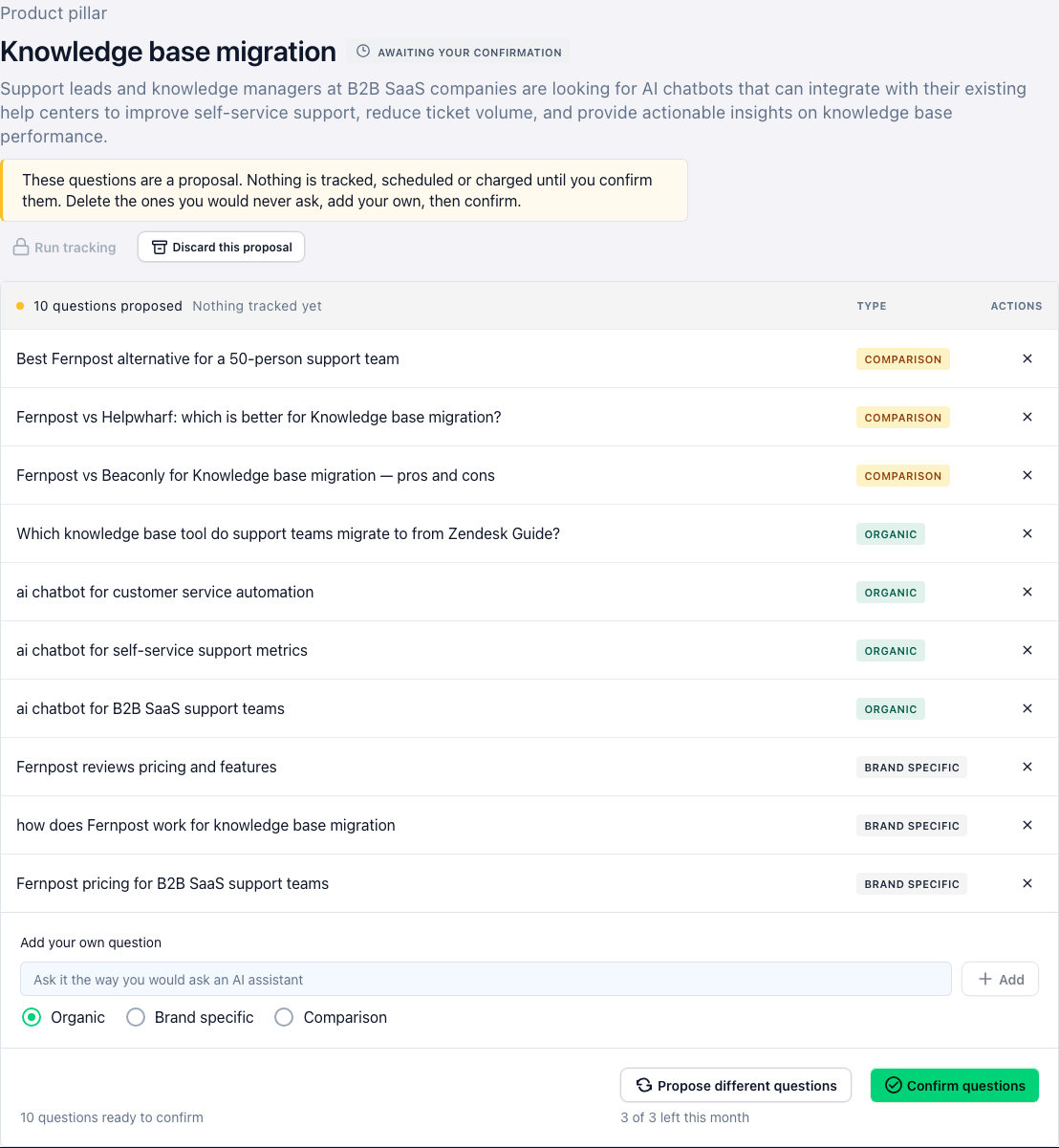
Creating it still starts nothing. It writes a batch of ten questions in the background — about a minute — and the topic appears in your list with an Awaiting your confirmation badge and a Run tracking button that is deliberately locked.
Three kinds of question, and why the mix is the point
The proposal is grouped: comparison questions first, then organic, then brand-specific. These are the same three kinds the Overview funnel measures separately, and they answer different business questions.
- Brand-specific — the question names you. "Is your brand any good for X?" This is the easy one: the model is looking straight at you, so a mention proves it has heard of you and nothing more.
- Comparison — you against a named rival. This is where you find out what the model says about you when someone is actively choosing between two options.
- Organic — the question describes a problem and names nobody. The model picks whoever it thinks of. This is the one that decides whether people who have never heard of you ever will.
A topic made only of brand-specific questions will produce a flattering number that tells you nothing. Keep the organic questions in the batch even though they are the ones you are least likely to be mentioned in — they are the reason the product exists.
What you can change before confirming
Remove any question with the ✕ on its row. Removal is local: nothing is deleted on the server until you confirm, so a Restore N removed link brings them all back if you change your mind.
Add your own in the field below the table, choosing whether it is organic, brand-specific or comparison. It joins the proposal on the same terms as the generated ones — staged, not tracked, costing nothing until you confirm.
You cannot edit the text of a proposed question. This is the same rule as onboarding, and there is no edit button to hunt for. If a question is nearly right, remove it and write your own version.
Five is the floor
Confirm stays disabled until at least five questions remain, and the count line switches to a warning to say why: fewer than that measures noise, not visibility. With two or three questions a single answer that goes one way or the other moves your number by tens of percentage points, and nothing you read from it will be true next week.
Confirming also counts the questions against your plan's question limit for that project — 20 on Launch, 100 on Growth, 200 on Scale. If confirming would pass it, the confirm is refused and the plans dialog opens; remove a few questions or upgrade.
Propose different questions
If the whole batch is off, Propose different questions throws it away and writes a new one. The old proposal is discarded outright — it never ran, so there is no history to lose.
This is capped per topic, per calendar month: one rebuild on Launch, two on Growth, three on Scale. The button tells you what is left before you click it, and there is a ten-minute wait between two rebuilds of the same topic.
If only some of the questions are wrong, removing them and adding your own is usually the better trade — it costs nothing and it does not spend the allowance.

What Confirm does, and what it does not
On Confirm, the questions you kept are attached to the topic and become live; the ones you removed are deleted, because they never ran and there is no answer history behind them. The draft flag is cleared, the topic gets a schedule from its tracking cadence, and the confirmation message names the moment tracking starts.
Confirm does not fire a run. It sets the cadence. The first answers arrive on the first scheduled run — or sooner, if you open the topic and press Run tracking yourself, which is now unlocked. Until then the topic is real, confirmed and empty, and that is the expected state, not a fault.
A draft you leave alone
Nothing expires a draft. There is no timed auto-confirm, no clean-up job, and no run that happens behind you: an abandoned proposal is still a proposal next month, and it has never cost you a credit.
If you do not want it, Discard this proposal archives the topic. Nothing was ever tracked, so nothing is lost.
Three counters that mean three different things
The topic list is careful about this, because the difference matters when you are trying to work out whether something is broken.
- "10 questions proposed", next to Nothing tracked yet — a draft. These questions have never been sent anywhere.
- "10 questions — not run yet", next to First run … — confirmed and scheduled, but no answers have come back yet.
- "10 questions tracked", next to Next run … — at least one run has completed and there is real data behind the number.
The middle state is the one people report as a bug. A confirmed topic with no answers is waiting for its first scheduled run; the date next to the count tells you when that is.
What to read next
- Questions, topics and answer credits — how tracking is priced across engines.
- What your visibility number means — what the three question types add up to.